In this article, we will see how we can integrate our GitHub repo in DirectAdmin using Git Manager. Please ensure your hosting plan has Git and SSH Keys (Shell Access) enabled before you begin or ask you hosting provider if required.
- Create an SSH Key
Log in to your DirectAdmin Web Hosting Panel and locate SSH Keys under the Advanced Features section.
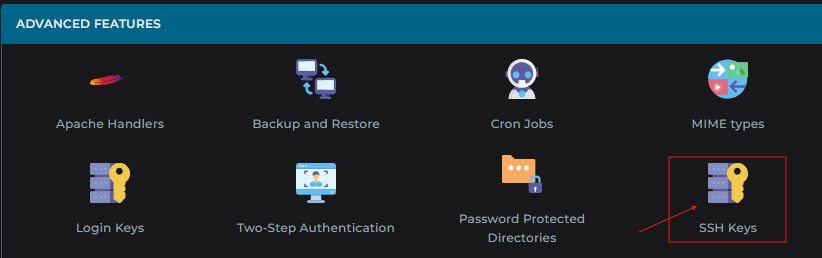
Click on SSH Keys, and click on CREATE KEY button:

Use recommended settings:
Key name: mygithubkey or any other meaningful name
Authorize: not needed in our case
Key size: 4096 bits
Password: empty
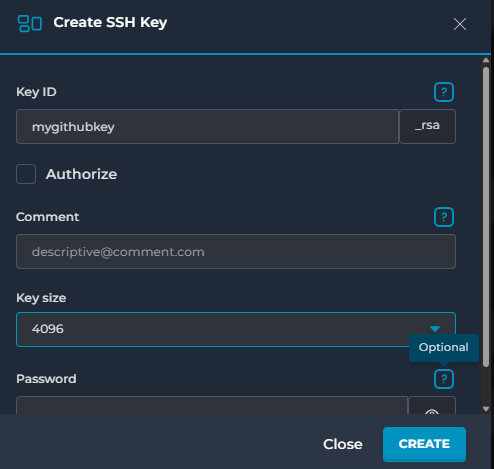
After the key is created, download it.
Please note that a key pair is created and an equivalent private key exists in the same place/directory on the server with the same name but without .pub extension. In the above example, a private key must exist at .ssh/mygithubkey
2. Create Github Repo
Now it's time to create a GitHub repository if you have not done so yet.
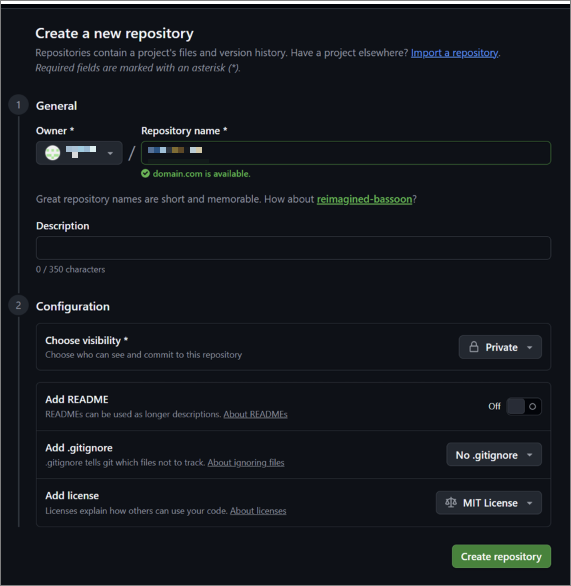
Create a new repository in GitHub.
Recommended repository name: your-domain.com
Example: example.com
Recommended settings:
Visibility: Private
License: Add a license if the project should be re-used, shared, or open-sourced
Mostly, we recommend using a private repository, because the website code is usually not meant to be shared publicly.
A license is not required for GitHub deployment to work. However, adding a license is useful if the project may be shared or re-used later. Without a license, default copyright rules apply, which means others do not automatically receive permission to use, copy, or modify the code.
- Copy GitHub SSH Remote URL
After creating the repository, copy the SSH remote URL.
It should look like this:
git@github.com:YOUR_GITHUB_USERNAME/YOUR_REPOSITORY.git
Example:
git@github.com:company/example.com.git
- Add Deploy Key to GitHub
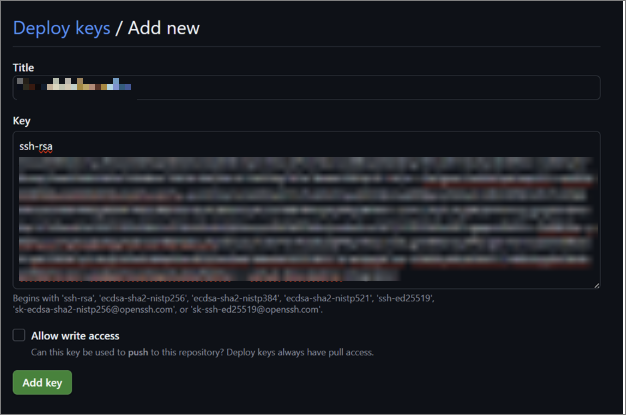
In GitHub, open the repository and go to:
Settings → Deploy keys → Add deploy key
Title: mydeploykey (or any other meaningful name)
Key: public key from DirectAdmin
Checking the box Write access is not required because DirectAdmin only pulls (or reads) files from GitHub.
- Create and Configure Repository in DirectAdmin
In DirectAdmin, go to Git under Advanced Features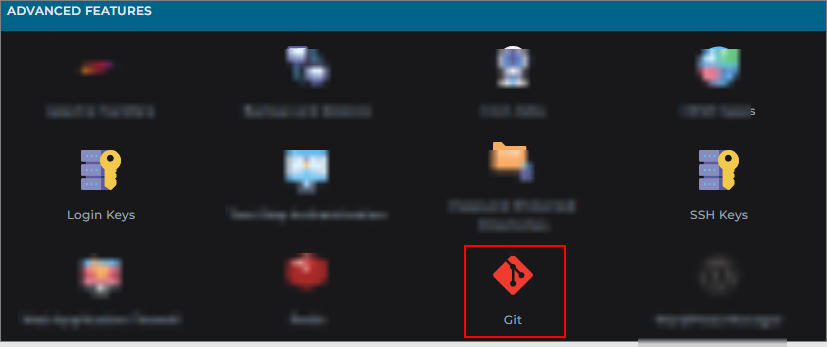
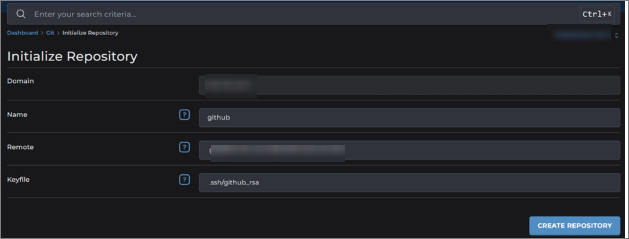
Click on Create Repository
Enter your GitHub repository details:
Remote:
git@github.com:[your_username]/[your_repository].git
Keyfile:
.ssh/[your_key_name]_rsa
Example:
Remote:
git@github.com:company/example.com.git
Keyfile:
.ssh/github_rsa
Then click edit and configure deployment settings:
Deploy branch:
main
Deploy directory:
domains/[your-domain]/public_html
Example:
domains/example.com/public_html
Save the settings and copy the Webhook URL from DirectAdmin (click on the repo link you created to see the URL)
- Add Webhook in GitHub
In GitHub, go to:
Settings → Webhooks → Add webhook
Use:
Payload URL: Webhook URL copied from DirectAdmin
Content type: application/json
Event: Just the push event
Active: yes
This allows GitHub to notify DirectAdmin when changes are pushed.
- Add Website Files to GitHub
Before testing deployment, make sure the repository contains the website files.
For a simple website, the repository should include files such as:
index.html
style.css
assets/
.htaccess
Please note that the index.html file should be in the main repository folder, not inside another folder.
Commit and push the files to the main branch.
- Test Your Deployment
In DirectAdmin Git Manager:
1. Click Fetch.
2. Click Deploy.
3. Open the website in a browser.
4. Push a small change to GitHub.
5. Check that the website updates automatically.
Website files should be deployed to:
domains/[your_domain]/public_html